Help and FAQ
Answers to the questions we are asked most often about setting up and using SR Product 360° View.
Where do I find my licence key and secret?
Buy a plan on this site, then sign in and go to My account → “License & Subscription”. That page shows your licence key. Each subscription listed on the page has its own secret.
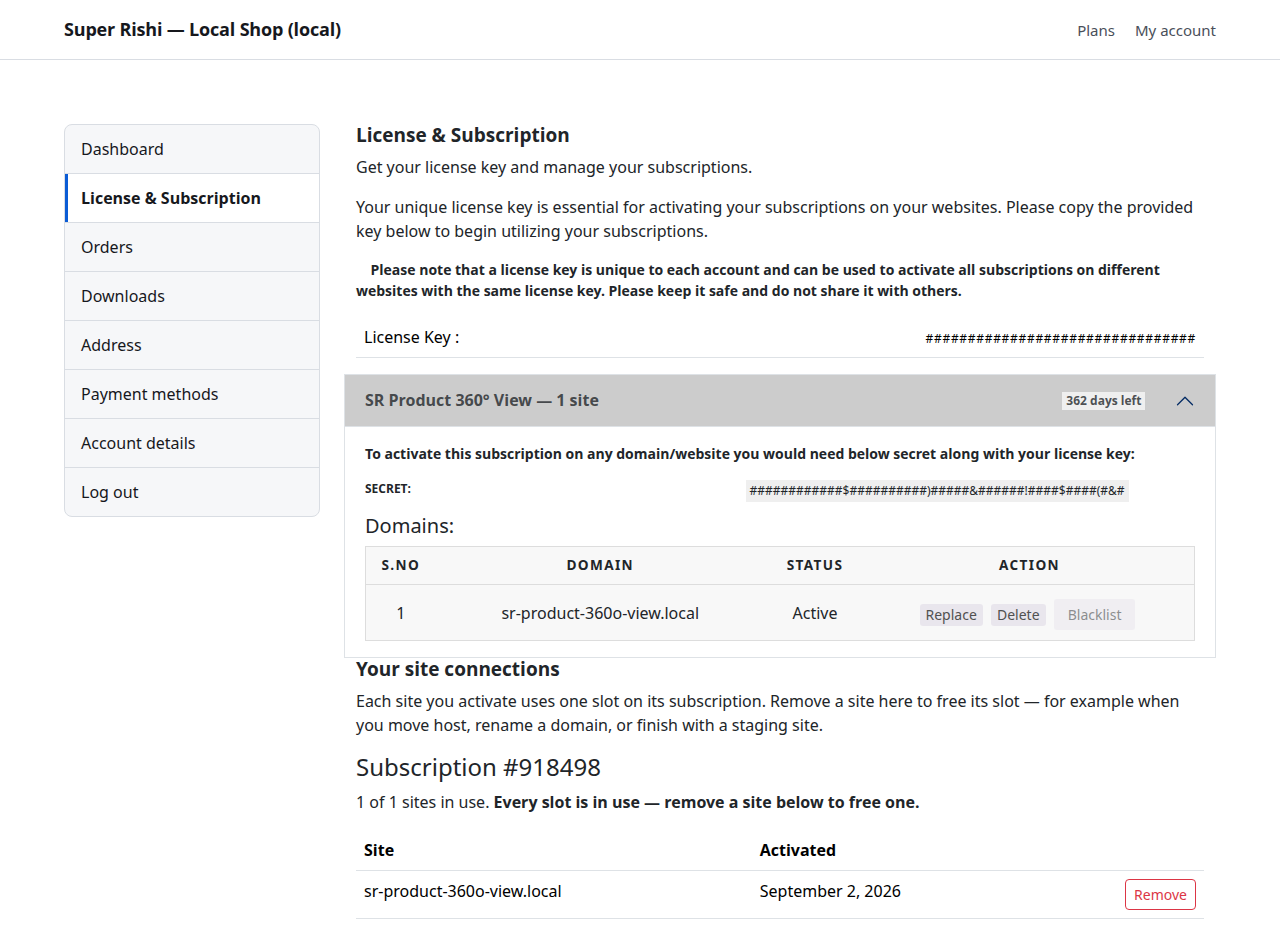
How do I activate the licence on my website?
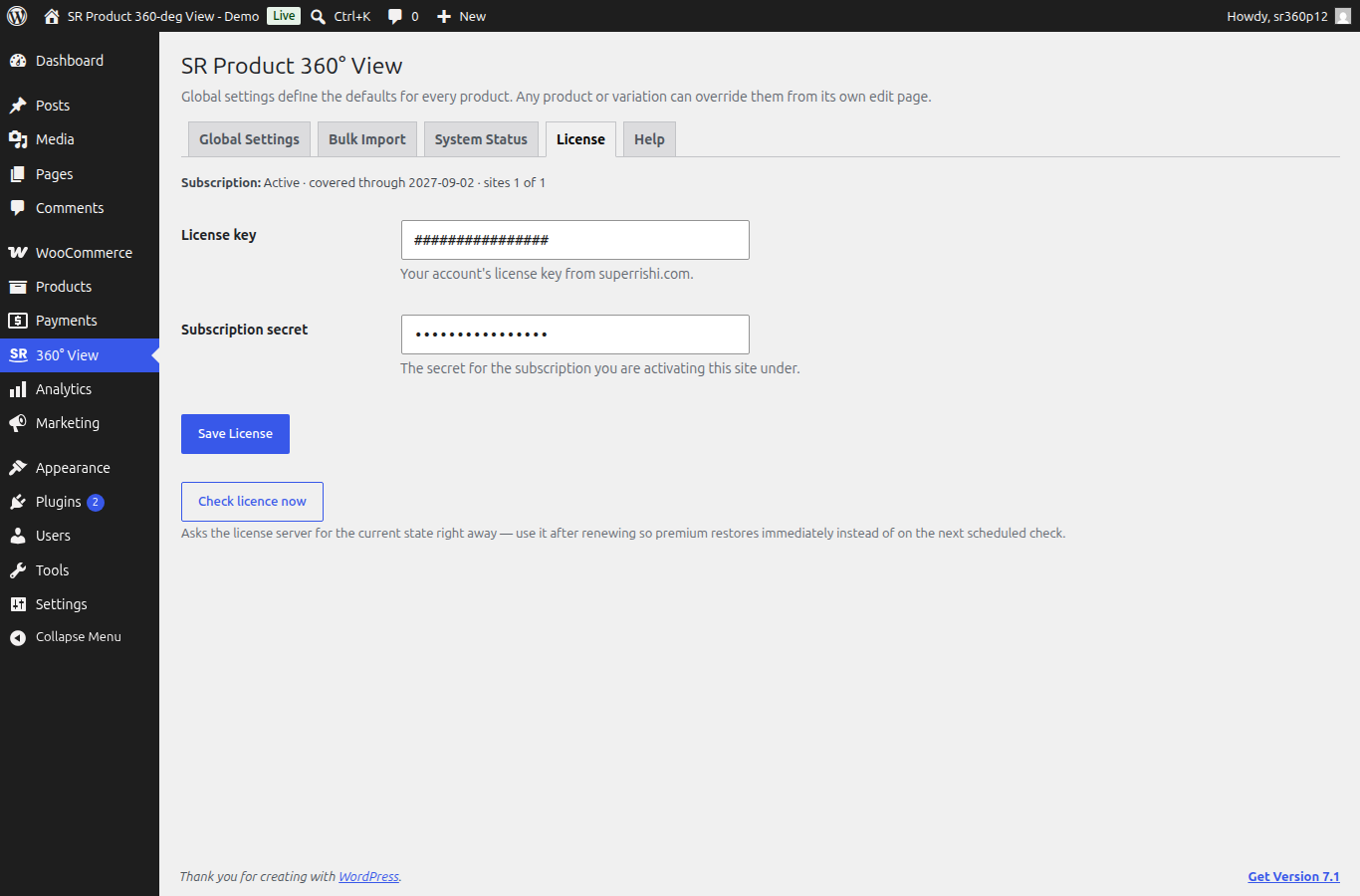
You need the licence key and the secret from the page above. Then, on your own website:
- Go to wp-admin → 360° View → License.
- Paste in your licence key and your secret.
- Save to activate.
How many sites can I use my licence on?
You have one licence key for your account, and you use that same key on every site. Your subscription covers a fixed number of sites.
How do I import a lot of frames at once?
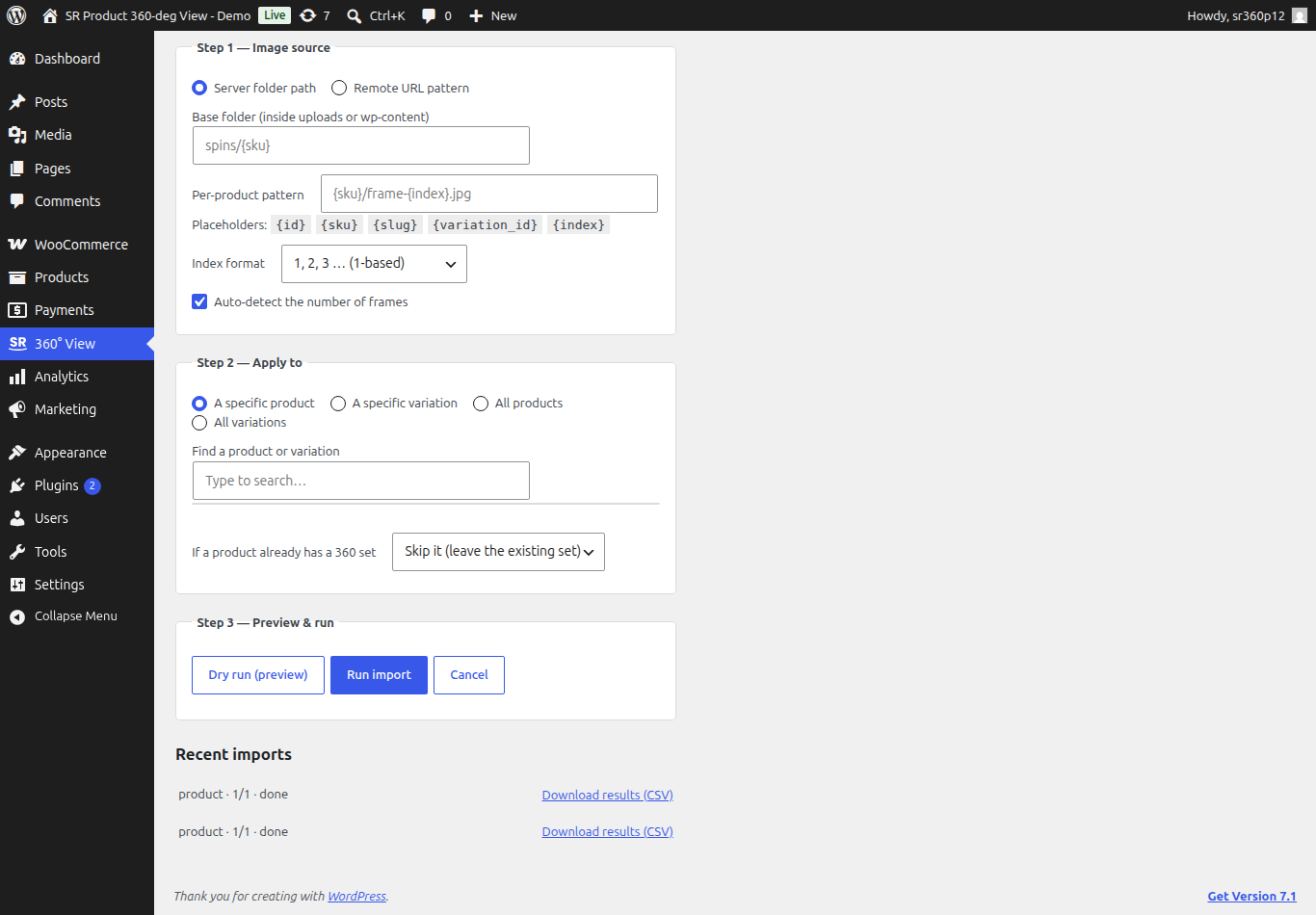
Bulk import is a premium feature for filling many products’ 360° sets in one go, from frame images you already have — in a folder on your server, or at a remote URL or CDN. It works in three steps on the Bulk Import tab:
- Image source. Choose a server folder or a remote URL pattern, then describe where each product’s frames live using placeholders — for example
spins/{sku}/frame-{index}.jpg.{sku},{id}or{slug}stands in for the product,{index}for the frame number, so one pattern serves every product. The frame count can be detected automatically. - Apply to. One product, one variation, or all products at once — and what to do when a product already has a set (it is skipped by default, so nothing is overwritten).
- Preview & run. Always run Dry run first: it reports exactly what would be imported and writes nothing. When the report looks right, run the import.
Is it safe to leave the page while the import runs?
Yes. The import runs in the background, so you can navigate away and it will carry on. If you run the same import again, it does not import the frames twice.
How do I add 360° frames to a product?
- Edit the product.
- Open the “Product 360° View” box.
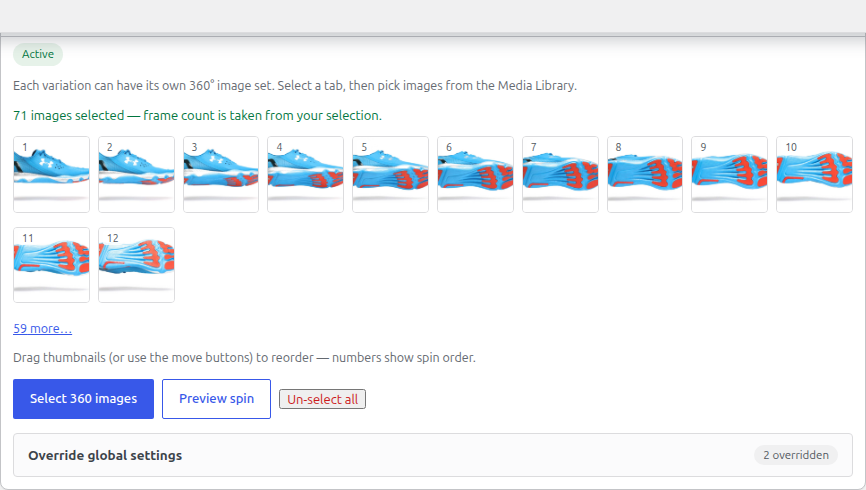
- Add your frames from the Media Library.
- Drag the frames into the order you want.
There is no frame count to fill in. It is always the number of frames you have added.
Can each variation have its own 360° view?
Yes, on premium. At the top of the “Product 360° View” box there are chips: “Default (all variations)”, and one for each variation. Choose a variation and give it its own set of frames.
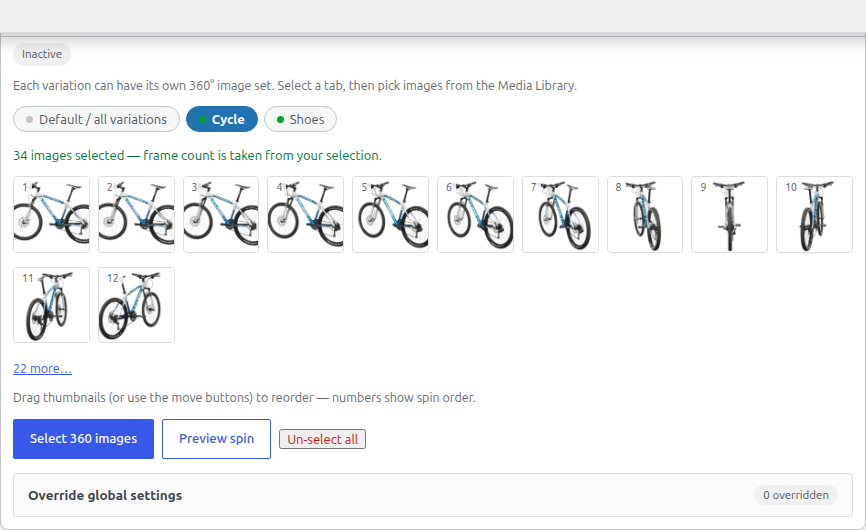
Which set of frames does a shopper see?
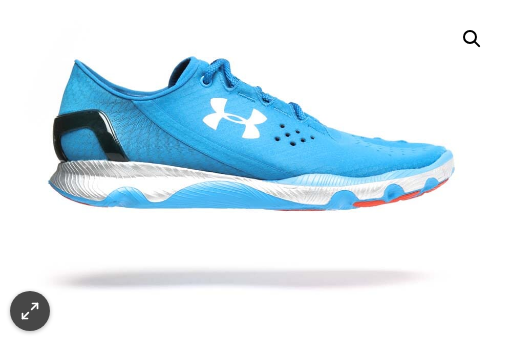
The viewer on your shop follows the variation the shopper selects.
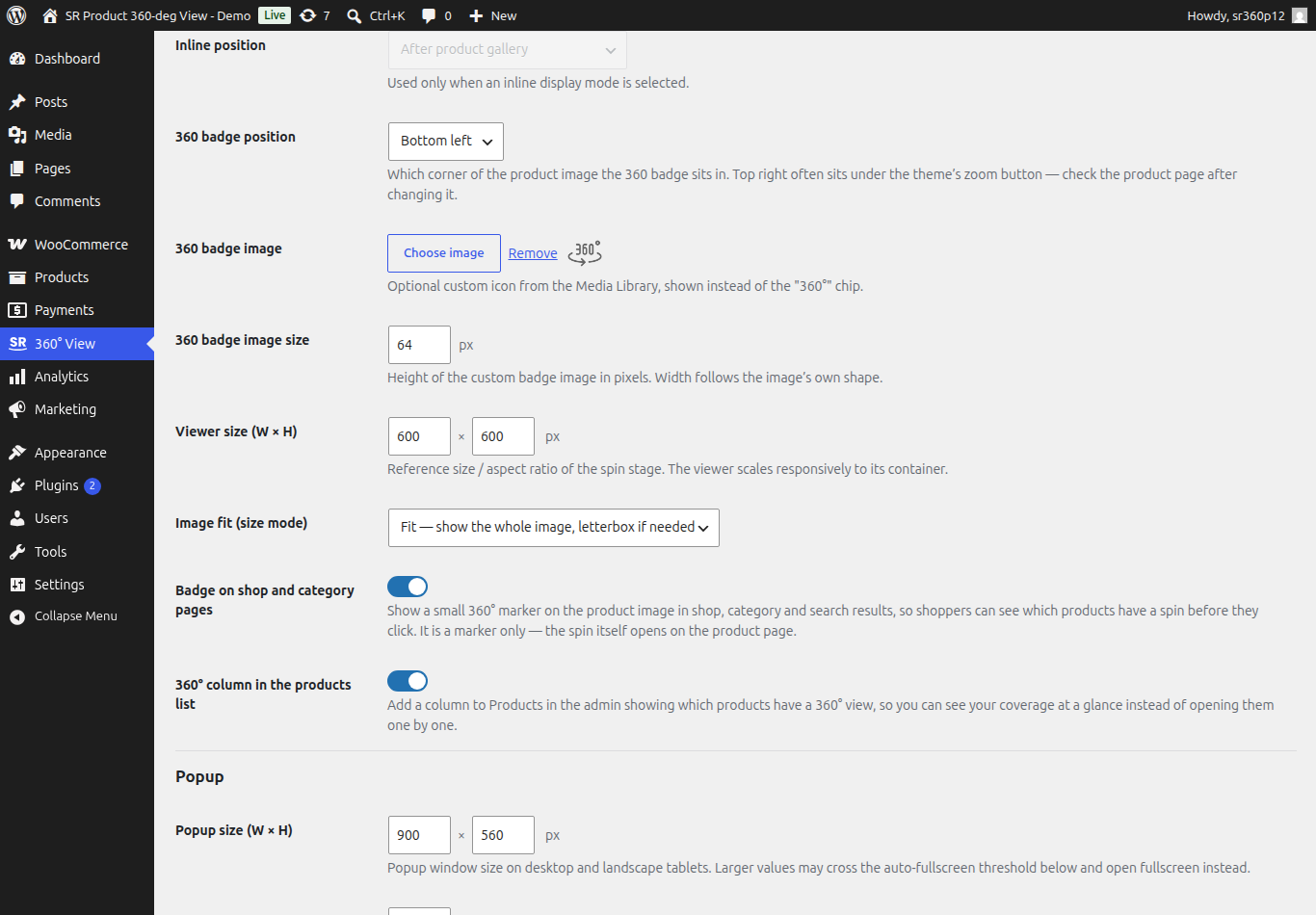
What is the difference between global settings and a single product’s settings?
Go to 360° View → Global Settings for the defaults that apply to every product.
To change one product only, use the “Override Global Settings” panel inside that product’s “Product 360° View” box. An override changes that one product, and only the fields you set in it.

If I change a global setting later, does it reach my products?
It reaches every product that does not override that setting. A product keeps its own value for any field it overrides. Remove the override and the product goes back to the global value.
Why is the “Override Global Settings” panel greyed out?
The free version shows the panel, but it is disabled. Premium applies it.
If your question is not answered here, email [email protected].